DPM performance

WARNING! Although I’ve successfully implemented the below against a production DPM database to improve performance, this procedure may not be supported by Microsoft, and I cannot be held responsible for any consequences.
Note, however, that the below only involves adding indices to the database and, assuming a record is kept of these indices, they can easily be removed. The data itself is not altered.

When small, the DPM database performs well, but when larger (perhaps >5 GiB), even simple actions such as opening the DPM console can cause SQL Server to struggle to serve the data. The indicators of this bottleneck are excessive processor utilisation by SQL Server, DPM taking a long time to perform simple actions, and the console crashing due to time-outs. The fix for this is to add missing indices to the DPM database. In theory, adding indices can increase the write time to the database, but in practice I haven’t found this to be the case with DPM, and read times can be dramatically improved. The size of the DPM database will increase; from experience, by ~30%.

To determine the indices to add, execute the following in the context of the DPM database:

SELECT
	dm_mid.database_id AS DatabaseID,
	dm_migs.avg_user_impact * (dm_migs.user_seeks + dm_migs.user_scans) AS AverageEstimatedImpact,
	dm_migs.last_user_seek AS LastUserSeek,
	OBJECT_NAME(dm_mid.OBJECT_ID, dm_mid.database_id) AS TableName,
	CreateStatement =
		'CREATE INDEX [IX_' + OBJECT_NAME(dm_mid.OBJECT_ID, dm_mid.database_id)
		+ '_'
		+ REPLACE(REPLACE(REPLACE(ISNULL(dm_mid.equality_columns, ''), ', ', '_'), '[', ''), ']', '')
		+ CASE
			WHEN dm_mid.equality_columns IS NOT NULL AND dm_mid.inequality_columns IS NOT NULL THEN '_'
			ELSE ''
		END
		+ REPLACE(REPLACE(REPLACE(ISNULL(dm_mid.inequality_columns, ''), ', ', '_'), '[', ''), ']', '')
		+ ']'
		+ ' ON ' + dm_mid.[statement]
		+ ' (' + ISNULL(dm_mid.equality_columns, '')
		+ CASE
			WHEN dm_mid.equality_columns IS NOT NULL AND dm_mid.inequality_columns IS NOT NULL THEN ','
			ELSE ''
		END
		+ ISNULL(dm_mid.inequality_columns, '')
		+ ')'
		+ ISNULL(' INCLUDE (' + dm_mid.included_columns + ')', '')

FROM
		sys.dm_db_missing_index_groups dm_mig

INNER JOIN	sys.dm_db_missing_index_group_stats dm_migs
ON		dm_migs.group_handle = dm_mig.index_group_handle

INNER JOIN	sys.dm_db_missing_index_details dm_mid
ON		dm_mig.index_handle = dm_mid.index_handle

WHERE
	dm_mid.database_ID = DB_ID()
AND	dm_migs.avg_user_impact * (dm_migs.user_seeks + dm_migs.user_scans) > 100
ORDER BY
	AverageEstimatedImpact DESC

The CreateStatement column contains the statement(s) that are to be executed to create the missing indices. The query isn’t perfect – it sometimes recommends the creation of duplicate indices, so it’s worth manually reviewing the statements before executing them. I also recommend retaining the list of indices so that they can be removed at a later date, if required.

Web console alert links

The direct links to alert pages in the SCOM web console vary from version to version. The below describes the URL formats. Replace <Alert GUID> with the GUID to the alert.

SCOM 2012 (R2)

http://server/OperationsManager/#/web(url='/monitoringview/default.aspx?DisplayMode=Pivot&AlertID=<Alert GUID>')

SCOM 2016

http://server/MonitoringView/default.aspx/#/web(url='/OperationsManager/default.aspx?DisplayMode=Pivot&AlertID=<Alert GUID>')

SCOM 1801

http://server/OperationsManager/#/monitoring/drilldown/alert/<Alert GUID>

Management pack import results in a DispatcherService timeout

<Management pack name> could not be imported.

If any management packs in the Import list are dependent on this management pack, the installation of the dependent management packs will fail.

System.TimeoutException: The requested operation timed out. —> System.TimeoutException: This request operation sent to net.tcp://<hostname>:5724/DispatcherService did not receive a reply within the configured timeout (00:29:59.5368709). The time allotted to this operation may have been a portion of a longer timeout. This may be because the service is still processing the operation or because the service was unable to send a reply message. Please consider increasing the operation timeout (by casting the channel/proxy to IContextChannel and setting the OperationTimeout property) and ensure that the service is able to connect to the client.

I recently encountered the above error when importing a custom (sealed) management pack, and struggled with it for quite some time. Was the cause that the management pack was simply too large? Was there a SQL Server performance problem? Perhaps there was a timeout config error on the management server?

Eventually I traced the problem to an error in the <Resources> section of the management pack: there were references to files that didn’t exist.

<Image ID=”DistributedApplications.Image.Crepe16″ Accessibility=”Public” FileName=”Cr├¬pe1680.png” />
<Image ID=”DistributedApplications.Image.Crepe80″ Accessibility=”Public” FileName=”Cr├¬pe8080.png” />

The mistake was that files by the names specified weren’t present in the management pack; this was simply a typo. I would have thought this would cause an error to be thrown in the console, but instead SCOM attempts to import the management pack, appears to silently fail part-way through the process, then the SDK service waits for the above timeout. The solution was to simply provide the correct file names.

Data warehouse errors after upgrading DPM 2012 R2 management packs to DPM 2016

WARNING! The fix implemented below will leave your data warehouse database in an unsupported state. This may lead to data corruption, and you may have to restore from a backup. Microsoft will not support such direct edits of the database, and I cannot be held responsible for any consequences. I recommend you open a case with Microsoft if you are experiencing these problems.

Following an internal upgrade from DPM 2012 R2 to 2016, I replaced the appropriate DPM management packs in SCOM, upgrading them to version 5.0.1300.0 (released on 26/10/2016), and monitoring works perfectly. However, there were persistent errors logged on the management servers, relating to the data warehouse:

Event ID: 31565

Failed to deploy Data Warehouse component. The operation will be retried.
Exception ‘DeploymentException’: Failed to perform Data Warehouse component deployment operation: Install; Component: DataSet, Id: ’34f57e9b-2777-8c69-a5a6-fbc8d0f1824f’, Management Pack Version-dependent Id: ‘e3a96ce5-bfb2-07b8-ef66-4c711a6606c7’; Target: DataSet, Id: ‘579fd046-1d03-4e54-9c4e-b3534a06a704’. Batch ordinal: 8; Exception: Violation of UNIQUE KEY constraint ‘UN_StandardDatasetAggregationStorage_BaseTableName’. Cannot insert duplicate key in object ‘dbo.StandardDatasetAggregationStorage’. The duplicate key value is (tbl_DPM_BackupEvents).
The statement has been terminated.

One or more workflows were affected by this.

Workflow name: Microsoft.SystemCenter.DataWarehouse.Deployment.Component
Instance name: Data Warehouse Synchronization Service

and

Event ID: 31565

Failed to deploy Data Warehouse component. The operation will be retried.
Exception ‘DeploymentException’: Failed to perform Data Warehouse component deployment operation: Install; Component: DataSet, Id: ‘6d9addfa-7b4c-4536-9fcc-ad6af21f835c’, Management Pack Version-dependent Id: ‘9e315942-a99b-8bb9-56d9-712f601901e7’; Target: DataSet, Id: ‘e13dde51-363c-47b2-8133-f892de58d3d0’. Batch ordinal: 8; Exception: Failed to rename staging table as part of dataset maintenance. sp_rename returned ‘2627’
Cannot grant, deny, or revoke permissions to sa, dbo, entity owner, information_schema, sys, or yourself.

One or more workflows were affected by this.

Workflow name: Microsoft.SystemCenter.DataWarehouse.Deployment.Component
Instance name: Data Warehouse Synchronization Service

Initially, as monitoring was working, I was content with leaving these data warehouse problems alone: we rarely access the data warehouse and have never done so for DPM, and I assume that Microsoft are working on a fix. However, we recently ran into some other data warehouse problems, so along the way I wanted to clean these up.

The problem was caused by old datasets being left in the data warehouse database by the DPM 2012 R2 management pack. This wouldn’t usually be a problem, but the same table names are used by the DPM 2016 MP, and this causes conflicts that prevented the new MP from being able to deploy itself. The solution was to remove the old DPM 2012 R2 datasets, which I no-longer needed, using a script on Mihai Sarbulescu’s blog. Although the script is described as being for SCOM 2007 R2, I ran it against SCOM 2016 without any difficulties (although I had to fix a small typo :p).

Evidence of the problem is the events mentioned above and output from the below query where there are zeroes in the InstallCompletedInd column for DPM datasets. This indicates failed deployments for DPM datasets to the database.

USE OperationsManagerDW
SELECT * FROM dbo.Dataset ORDER BY InstalledDateTime DESC

WARNING! Again, the below fix is unsupported by Microsoft, and I can’t be held responsible for this or any other consequences. You will also lose your old DPM data from the data warehouse database by executing the below.

The steps to my solve my problem were:

  1. Stop the healthservice, cshost and omsdk services on all management servers.
  2. Take a backup of the data warehouse database.
  3. Execute the script to remove the old DPM datasets (see below).
  4. Start the healthservice, cshost and omsdk services on all management servers.
  5. Observe that, over the next few minutes, the DPM 2016 data warehouse components are automatically deployed, by examining the dbo.Dataset table (see above).

The script to remove the old DPM datasets is below. Full credit goes to Mihai Sarbulescu. Just remember to update the @MGName variable.

USE OperationsManagerDW

DECLARE
    @DataSetLike NVARCHAR(255),
    @MGName NVARCHAR(255),
    @DataSetId UNIQUEIDENTIFIER,
    @MGid INT,
    @FetchStatus INT,
    @AgId INT
 
 SET @MGName = N'Your management group name'
 SET @DataSetLike = N'DPM'
 
 DECLARE Cur CURSOR LOCAL FOR
    SELECT DataSetID
    FROM DataSet
    WHERE DatasetDefaultName LIKE (@DataSetLike + '%')
 
 OPEN Cur
 
 FETCH NEXT FROM Cur INTO @DataSetId
 SET @FetchStatus = @@FETCH_STATUS
 
 SET @MGid = (
    SELECT ManagementGroupRowId
    FROM ManagementGroup
    WHERE ManagementGroupDefaultName = @MGName
 )
 WHILE (@FetchStatus = 0) BEGIN
    SELECT @AgId = min(StandardDatasetAggregationStorageRowId)
    FROM StandardDatasetAggregationStorage
    WHERE DatasetId = @DataSetId
    PRINT N'Agid = ' + Cast(@Agid AS VARCHAR)
 
    WHILE (@AgId IS NOT NULL) BEGIN
       DELETE
       FROM StandardDatasetAggregationStorageIndex
       WHERE StandardDatasetAggregationStorageRowId = @AgId
       PRINT N'Deleting from StandardDataSetAggregationStorageIndex: ' + Cast(@DataSetId AS NVARCHAR(50))
 
       DELETE
       FROM StandardDatasetAggregationStorage
       WHERE StandardDatasetAggregationStorageRowId = @AgId
       PRINT N'Deleting from StandardDataSetAggregationStorage: ' + Cast(@DataSetId AS NVARCHAR(50))
 
       SELECT @AgId = min(StandardDatasetAggregationStorageRowId)
       FROM StandardDatasetAggregationStorage WHERE DatasetId = @DataSetId
 
       PRINT N'Agid = ' + Cast(@Agid AS VARCHAR)
    END
 
    DELETE
    FROM ManagementGroupDataset
    WHERE
       DatasetId = @DataSetId AND
       ManagementGroupRowId = @MGid
    PRINT N'Deleting from ManagementGroupDataset: ' + Cast(@DataSetId AS NVARCHAR(50))
 
    DELETE
    FROM StandardDataset
    WHERE DatasetId = @DataSetId
    PRINT N'Deleting from StandardDataSet: ' + Cast(@DataSetId AS NVARCHAR(50))
 
    DELETE
    FROM StandardDatasetAggregationStorage
    WHERE DatasetId = @DataSetId
    PRINT N'Deleting from StandardDataSetAggregationStorage: ' + Cast(@DataSetId AS NVARCHAR(50))
 
    DELETE
    FROM StandardDatasetAggregationHistory
    WHERE DatasetId = @DataSetId
    PRINT N'Deleting from StandardDataSetAggregationHistory: ' + Cast(@DataSetId AS NVARCHAR(50))
 
    DELETE
    FROM StandardDatasetAggregation
    WHERE DatasetId = @DataSetId
    PRINT N'Deleting from StandardDataSetAggregation: ' + Cast(@DataSetId AS NVARCHAR(50))
 
    DELETE
    FROM StandardDatasetTableMap
    WHERE DatasetId = @DataSetId
    PRINT N'Deleting from StandardDataSetTableMap: ' + Cast(@DataSetId AS NVARCHAR(50))
 
    DELETE
    FROM Dataset
    WHERE DatasetId = @DataSetId
    PRINT N'Deleting from DataSet: ' + Cast(@DataSetId AS NVARCHAR(50))
 
    FETCH NEXT FROM Cur INTO @DataSetId
    SET @FetchStatus = @@FETCH_STATUS
 
 END
 
 CLOSE Cur
 DEALLOCATE Cur

If you’ve implemented the above, your data warehouse database should populate with DPM data after a day or two; however, you probably won’t be able to view the report as it’ll show this error:
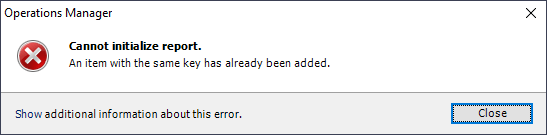
DPM-report-error

An item with the same key has already been added.

This occurs because the report selects the display name of DPM servers, and Microsoft have reused the class name of objects discovered by both the DPM 2012 R2 and 2016 management packs, so there’s essentially duplicate data in the data warehouse, and for some server names two entries are returned to the report. The fix is to either delete the redundant data, which gets a bit convoluted because of the foreign key references, or to simply rename the old objects. Again, the usual disclaimer at the beginning of this article applies: if you do this, your database will be unsupported.

DECLARE @DisplayNameSuffix NVARCHAR(MAX) = '(DPM 2012 R2)'

UPDATE
	me
SET
	me.DisplayName = me.DisplayName + ' ' + @DisplayNameSuffix
FROM
		dbo.ManagedEntity me

INNER JOIN	dbo.vManagedEntityManagementGroup memg
ON		me.ManagedEntityRowId = memg.ManagedEntityRowId

INNER JOIN	dbo.vManagedEntityType met
ON		me.ManagedEntityTypeRowId = met.ManagedEntityTypeRowId

INNER JOIN	dbo.vManagementPack mp
ON		met.ManagementPackRowId = mp.ManagementPackRowId

WHERE
	memg.ToDateTime IS NOT NULL
AND	met.ManagedEntityTypeSystemName = 'Microsoft.SystemCenter.DataProtectionManager.2011.Library.DPMServer'
AND	mp.ManagementPackSystemName = 'Microsoft.SystemCenter.DataProtectionManager.2012.Library'
AND	me.DisplayName NOT LIKE '%' + @DisplayNameSuffix + '%'

Remote Access (DirectAccess) monitoring

The Windows Server 2012 R2 Remote Access (7.1.10181.1) management pack contains a bug that prevents any discovery from taking place with the default configuration. There are also unusual permission requirements.

The bug is that, by default, the discovery runs using the default run-as account for the server, which is usually NT Authority\System, and no run-as profile exists to override this. Given that the discovery process must read GPOs, which are stored on network shares, this will always fail. It’s possible to change the default account for individual servers, but this would affect all the other workflows on that server. A workaround can be put in place by creating a new management pack that disables the default discovery, Remote Access Server PS Discovery, and adds an identical discovery from the Microsoft management pack, but with the addition of a run-as profile, which can then be set to use a domain account. None of the monitors need to run in the context of a domain account, so the run-as profile need only be applied to the discovery.

The following permissions are required by the account used for discovery:

  1. Administrator on every Remote Access/DirectAccess server. This is required to read from the SQL Server (WID) instance, and can be achieved by creating a GPO to assign this permission to the OU that contains the servers.
  2. Edit access to the client settings GPO. Read access, contrary to the documentation, is insufficient.
  3. Edit access to the server settings GPOs. Read access, again contrary to the documentation, is insufficient.

The above permissions should be provided by creating a (domain-local) group that contains the monitoring account, and assigning permissions to the group.

The final step is to distribute the run-as account to the servers that are to be monitored.

Problem with variable names starting with “Data”

There is a known bug in SCOM, whereby PowerShell scripts that are embedded in rules or monitors (i.e. where the script is visible in the data source of the rule/monitor) can’t contain references to variables whose names start with Data, e.g. Database. More specifically, such variables can’t be accessed using the dollar notation, e.g. $Database. VSAE will throw an exception when attempting to build a project containing such references:

The configuration specified for Module DS is not valid.
: Incorrect expression specified: $Database
Unable to resolve this expression. Check the expression for errors.

There are two workarounds. The easiest is to simply rename all the affected variables; e.g.:

$Database

to

$_Database

A more complex solution, although it allows the existing variable names to be used, is to change the method of access: using the Set-Variable and Get-Variable cmdlets. For example:

Set-Variable DataSet (New-Object System.Data.DataSet)
Get-Variable DataSet -ValueOnly

Care must be taken, however, to ensure that the value is unboxed; e.g. this will always return a value of 1:

Set-Variable SomeValues (1..5)
(Get-Variable SomeValues -ValueOnly | measure).Count

Instead, to obtain the count, use:

((Get-Variable SomeValues -ValueOnly) | measure).Count

Escape special characters with -match and -like

Let’s try comparing two identical strings.

$String = "Get-BlogPost [is super]."

$String -match $String
False

$String -like $String
False

The first result is expected, because match implements the regex function, and brackets are special characters in regex. The second result is, perhaps, more surprising. Why does like not return True in this instance? It appears that like is underpinned by regex, meaning that regex special characters must be escaped. So, let’s try escaping them:

$String -match [Regex]::Escape($String)
True

$String -like [Regex]::Escape($String)
False

The first works because [Regex]::Escape() applies escape characters that are applicable to regex:

[Regex]::Escape($String)
Get-BlogPost\ \[is\ super]\.

However, this doesn’t work with the like operator, because, although regex characters must be escaped, they must be escaped with the standard PowerShell escape character: backtick (`). To do this, use [System.Management.Automation.WildcardPattern]::Escape():

[System.Management.Automation.WildcardPattern]::Escape($String)
Get-BlogPost `[is super`].

To summarise:

$String -match [Regex]::Escape($String)
True

$String -like [System.Management.Automation.WildcardPattern]::Escape($String)
True

SCVMM instance not discovered by SCOM

I recently came across an unusual case of SCOM not discovering certain elements of an SCVMM instance, including the applicable storage objects and associated file server objects. The connection between SCVMM and SCOM was active; as evidence, the connection was visible in SCVMM, and the internal connectors to the SCVMM instance were in place in SCOM, as were the Management Group objects in SCOM. However, no error messages had been logged in SCOM or in the event log on the SCVMM servers.

After manually executing the discovery scripts from the SCVMM management packs, I discovered that one of the discovery scripts was failing due to a missing registry key.

The type or name syntax of the registry key value IndigoTcpPort under Software\Microsoft\Microsoft System Center Virtual Machine Manager Administrator Console\Settings is incorrect.

The cause of the problem was that a registry value, IndigoTcpPort, was missing from HKLM\SOFTWARE\Microsoft\Microsoft System Center Virtual Machine Manager Administrator Console\Settings\. It appears that this value was removed by an update rollup prior to UR7, which have been installed automatically. Adding the value with its default data, 0x00001fa4 (8100), and allowing time for the discoveries to run, resolved the problem.

Garbage collection in PowerShell scripts in SCOM

SCOM executes PowerShell scripts in a single AppDomain, i.e. it doesn’t launch a new instance for every script, as is often the case when running scripts locally or testing. This means that each script must clean-up after itself and not leave, for example, connections open or variables with references, as PowerShell will not run garbage collection on these objects, which results in handle and memory leaks.

The general principles:

  1. At the beginning of the script, determine those variables already in memory, which will primarily be system variables.
  2. At the end of the script, de-reference those variables created by the script, i.e. all those currently in memory, excluding those in memory when the script started.
  3. In the script, call the Close() method on objects when appropriate.
  4. At the end of the script, call the Close() and Dispose() methods on objects that support them.
  5. Do not create variables of type Constant, as these can’t be de-referenced.
  6. Wrap the main code body in a Try..Catch and include the clean-up code in the Finally section to ensure it’s always executed.
  7. It isn’t necessary to call [System.GC]::Collect().

Example:

Try
{
	# Store the variables in memory at start-up, excluding parameters supplied to the script.
	Set-Variable VariablesStartup -Option ReadOnly -Value (Get-Variable -Scope Global | ? { $_.Attributes.TypeId.Name -notcontains "ParameterAttribute" } | Select -ExpandProperty Name)

	Function Invoke-VariableCleanup
	{
	    $VariablesToBeRemoved = (Get-Variable -Scope Global | Select -ExpandProperty Name) | ? { $VariablesStartup -notcontains $_ }
	    ForEach ($Item in $VariablesToBeRemoved)
	    {
	        Remove-Variable -Name $Item -Scope Global -Force -ErrorAction SilentlyContinue
	    }
	}

	# Do something useful.
	$SQLConnection = New-Object System.Data.SqlClient.SqlConnection
	$SQLConnection.ConnectionString = "Server=ServerA;Integrated Security=True;Connection Timeout=600"
	$SQLConnection.Open()
	$SQLCommand = New-Object System.Data.SqlClient.SqlCommand
	$SQLCommand.CommandTimeout = 600
	$SQLCommand.CommandText = "SELECT 1"
	$SQLCommand.Connection = $SQLConnection
	
	$Adapter = New-Object System.Data.SqlClient.SqlDataAdapter $SQLCommand
	$DataSet = New-Object System.Data.DataSet
	$Adapter.Fill($DataSet) | Out-Null
	$DataTable = $DataSet.Tables[0]
	$SQLConnection.Close()
}
Catch
{
	# Log the error somewhere.
}
Finally
{
	If ($DataSet)
	{
		$DataSet.Dispose()
	}
	If ($Adapter)
	{
		$Adapter.Dispose()
	}
	If ($SQLCommand)
	{
		$SQLCommand.Dispose()
	}
	If ($SQLConnection)
	{
		$SQLConnection.Dispose()
	}

	Invoke-VariableCleanup
}

Type definitions

Type definitions can’t be unloaded from an AppDomain, so if one is defined in a script and is changed by an updated script, the type definition won’t change on the SCOM server where the script is executed. In order to allow for type definition updates, the monitoring agent, HealthService, must be restarted.

Example:

If (!([Management.Automation.PSTypeName]'SCOMResolutionState').Type)
{
	Add-Type -TypeDefinition @"
		public enum SCOMResolutionState
		{
			New = 0,
			Acknowledged = 249,
			Resolved = 254,
			Closed = 255
		}
"@
}

Named Pipes and SQL Server

The Named Pipes protocol is an optional endpoint for SQL Server, i.e. it’s a possible connection method for clients. When enabled, it has an advantage – from a user’s point-of-view – over the default TCP/IP endpoint: it allows connections from outside a domain boundary. The TCP/IP endpoint doesn’t allow connections to a SQL Server instance unless the client is on the same domain as the server. For example, if the server is in another domain (without a domain trust) or on a workgroup server, SQL Server Management Studio presents:

SSMS-connection-error

Login failed. The login is from an untrusted domain and cannot be used with Windows authentication.

As long as the credentials are available to the client, usually in the Credential Manager, Named Pipes can be used to bypass this problem. I presume – though it’s only a guess – that this is because the TCP/IP endpoint uses Kerberos, and Named Pipes is content with using NTLM.

Some clients allow Named Pipes to be selected manually; e.g. in versions of SQL Server Management Studio prior to 2016, the protocol can be selected in the connection dialog under Options > Connection Properties > Network protocol. Where the protocol can’t be manually selected, prepending np: to the connection string indicates that Named Pipes is to be used. This works in web.config connection strings, third-party applications and SQL Server Management Studio. For example, to connect to ServerA.domain.com with Named Pipes in SQL Server Management Studio, enter the server name as:

np:ServerA.domain.com

SSMS-named-pipes-connection